Excel / CSV Upload
Upload transaction data from Excel or CSV – whether it’s an export from systems like Sage or NetSuite, or your own spreadsheet – then validate, map and review everything inside generate.TAX before generating your VAT return.
Ideal for users who have an accounting software that does not handle VAT.


Data Import & Validation
The Excel / CSV entity is built for businesses and accountants whose data is already digitised. Upload a file, and generate.TAX validates the data before loading it into the Transactions tab. If the platform detects issues (including potential duplicates), you’ll see them immediately so you can correct the file or proceed with confidence.

Customisable mapping
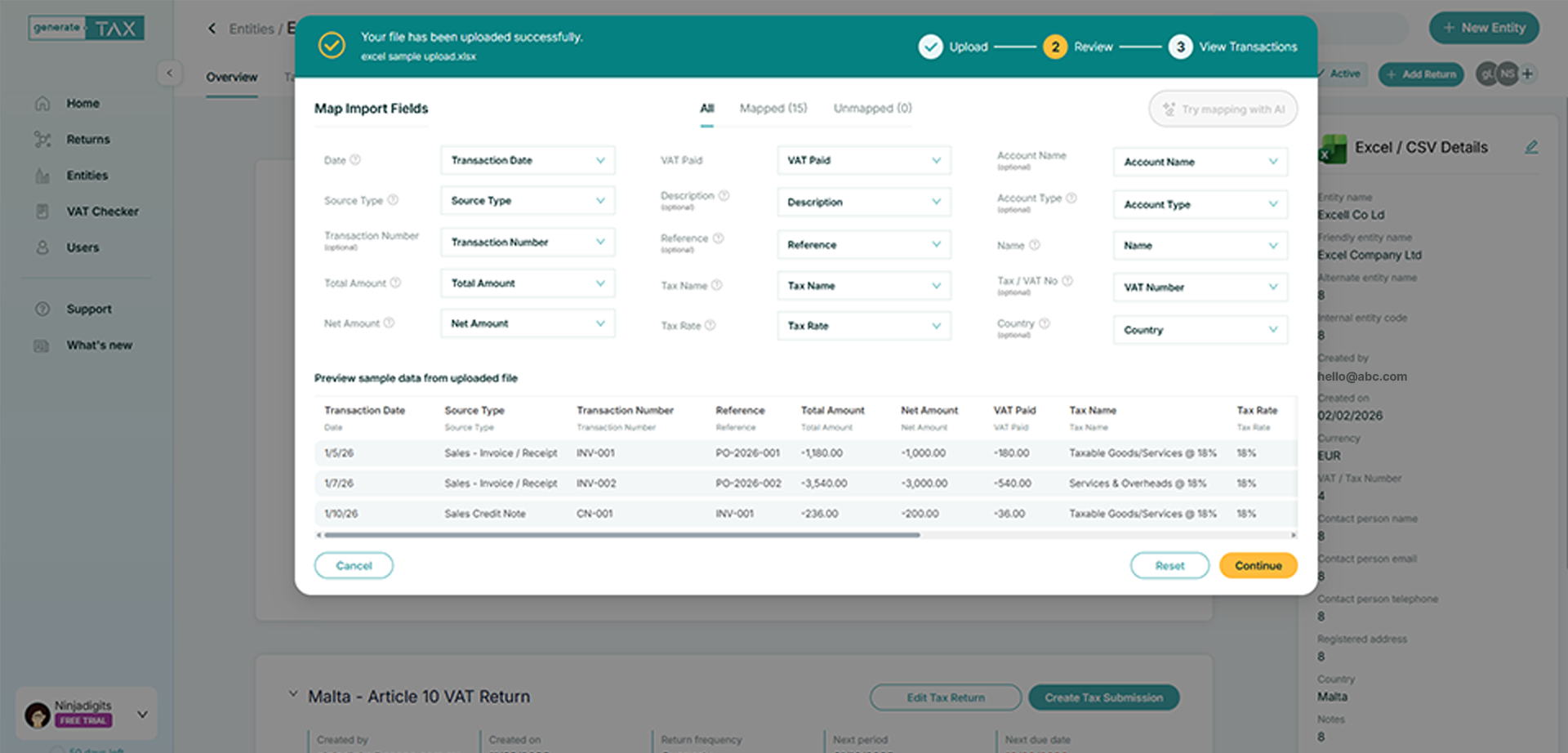
During upload you map the columns in your Excel/CSV to the fields generate.TAX expects. This makes it easy to import exports from different sources and keep your dataset consistent across multiple uploads. Once validated and uploaded, you can repeat the same process anytime to load additional periods or files.

Return generation
Once your transactions are uploaded, click Add Return to choose the tax type and period. From there you can map VAT codes to the corresponding boxes on the return and generate your filing outputs using the same return workflow as other entities.

Review workflow
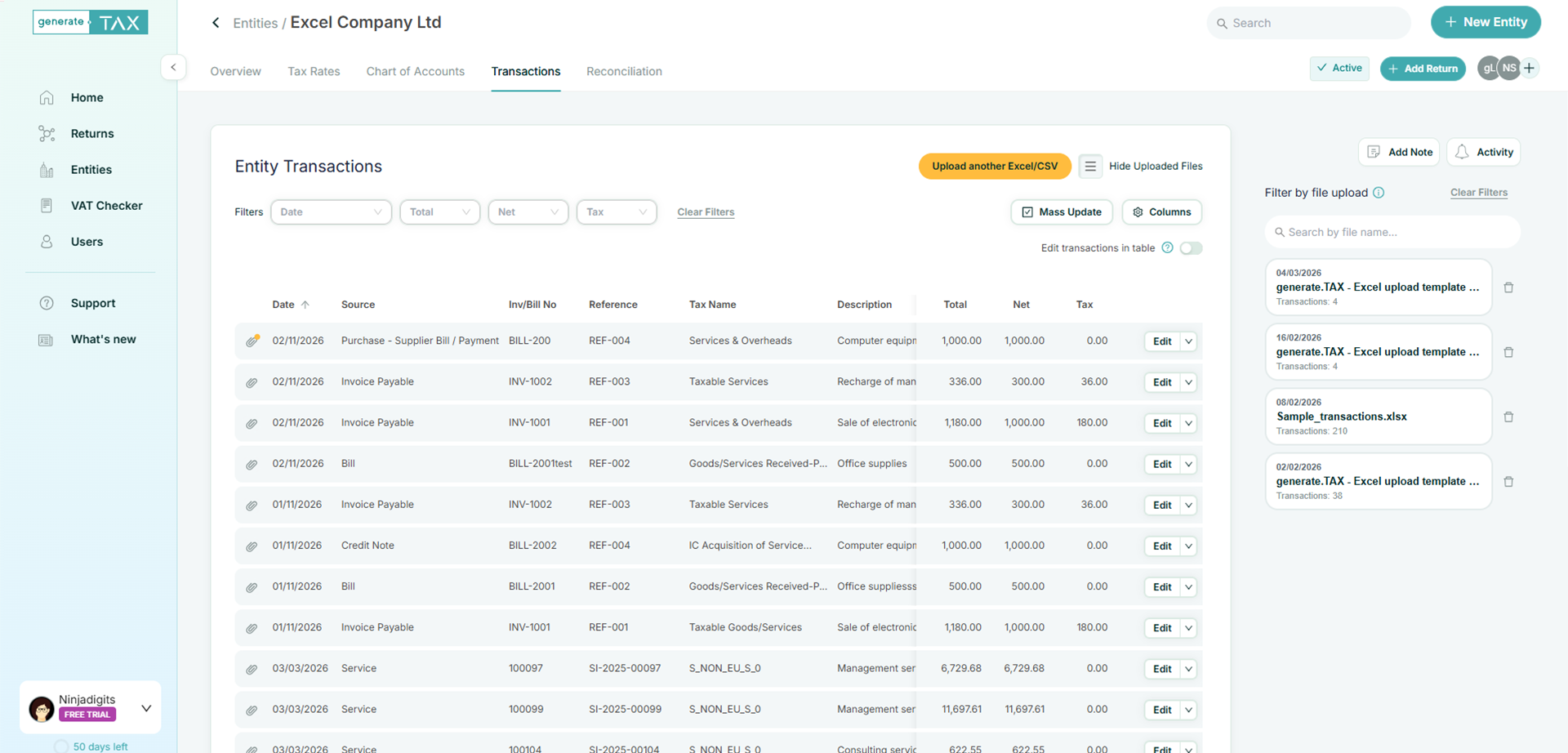
After upload, all records appear in the Transactions tab for review. Filter by file upload to focus on one import at a time, then remove the filter to see the full dataset. Edit records inline or in a focused detail view, and use bulk actions where available to speed up cleanup across many rows.
How it works
Import spreadsheet transactions into generate.TAX, validate the data, and generate your return with confidence.
Export or prepare your file
Export from your system (or start with our template)
Export transactions from your accounting system as an Excel or CSV file, or start with the generate.TAX template. This entity is designed for already-digitised data (no receipt scanning).
Upload into your Excel / CSV entity
Bring large datasets into one place quickly.
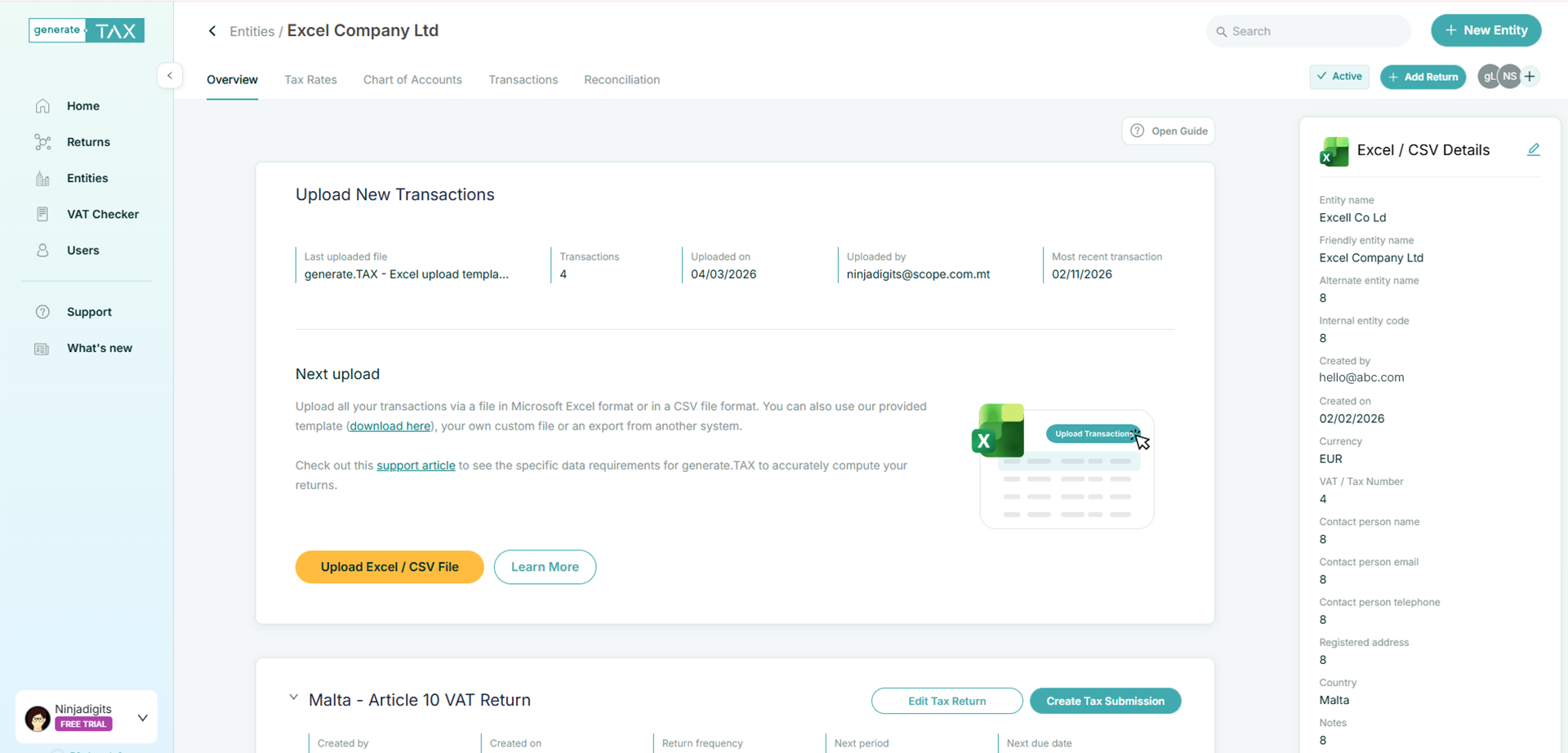
Upload your file directly to your Excel / CSV entity. Each upload is stored as a separate import so you can track what was loaded and when.
Map your columns
Tell generate.TAX how to interpret your spreadsheet.
Match the columns in your file to the fields generate.TAX expects. Once the mapping is set, you can reuse the same structure for future uploads to keep everything consistent.
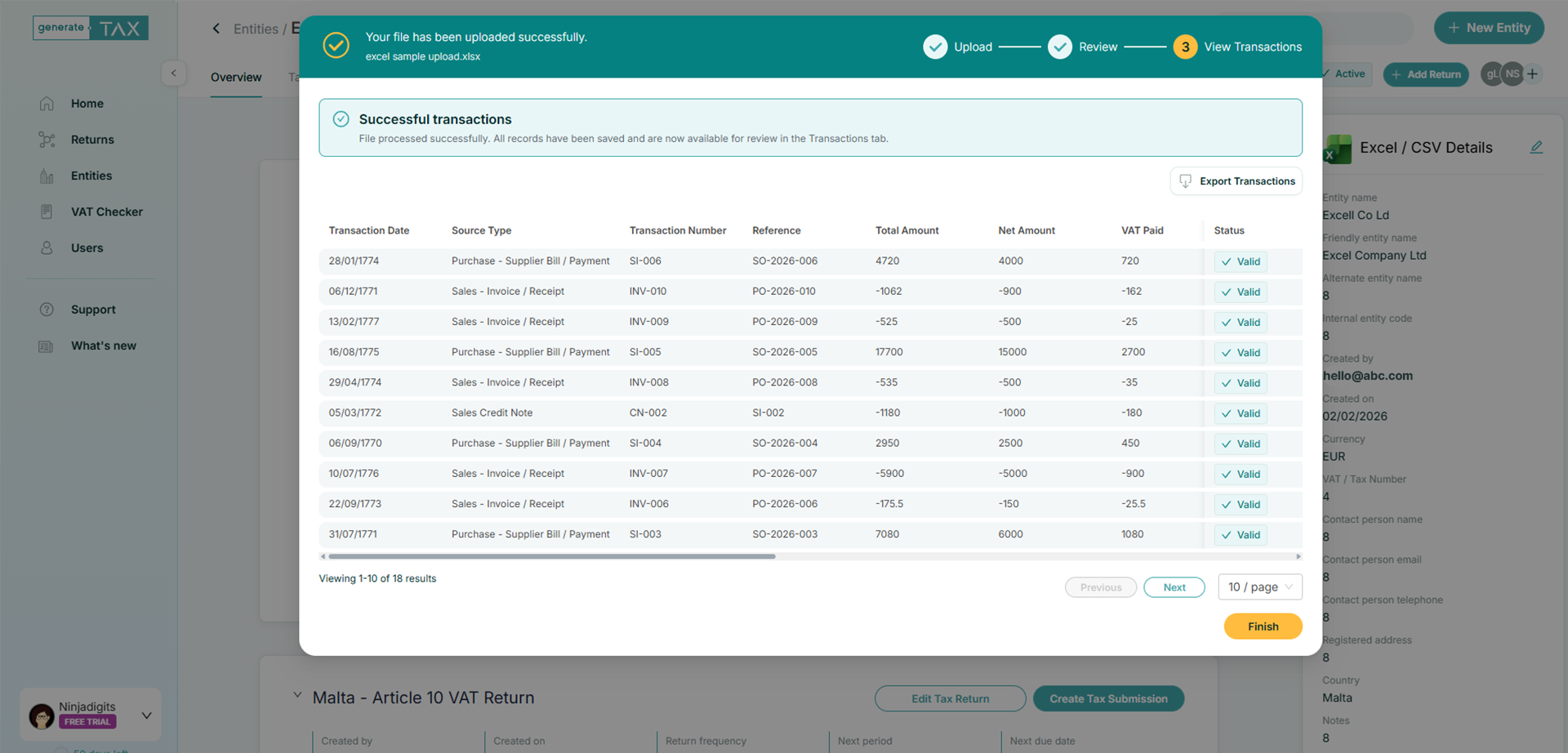
Validate (and handle duplicates)
Built-in validation during upload to fix issues before they become filing problems.
generate.TAX validates your upload and flags issues so you can correct them early. If potential duplicates are detected, you’ll be prompted so you can decide how to proceed
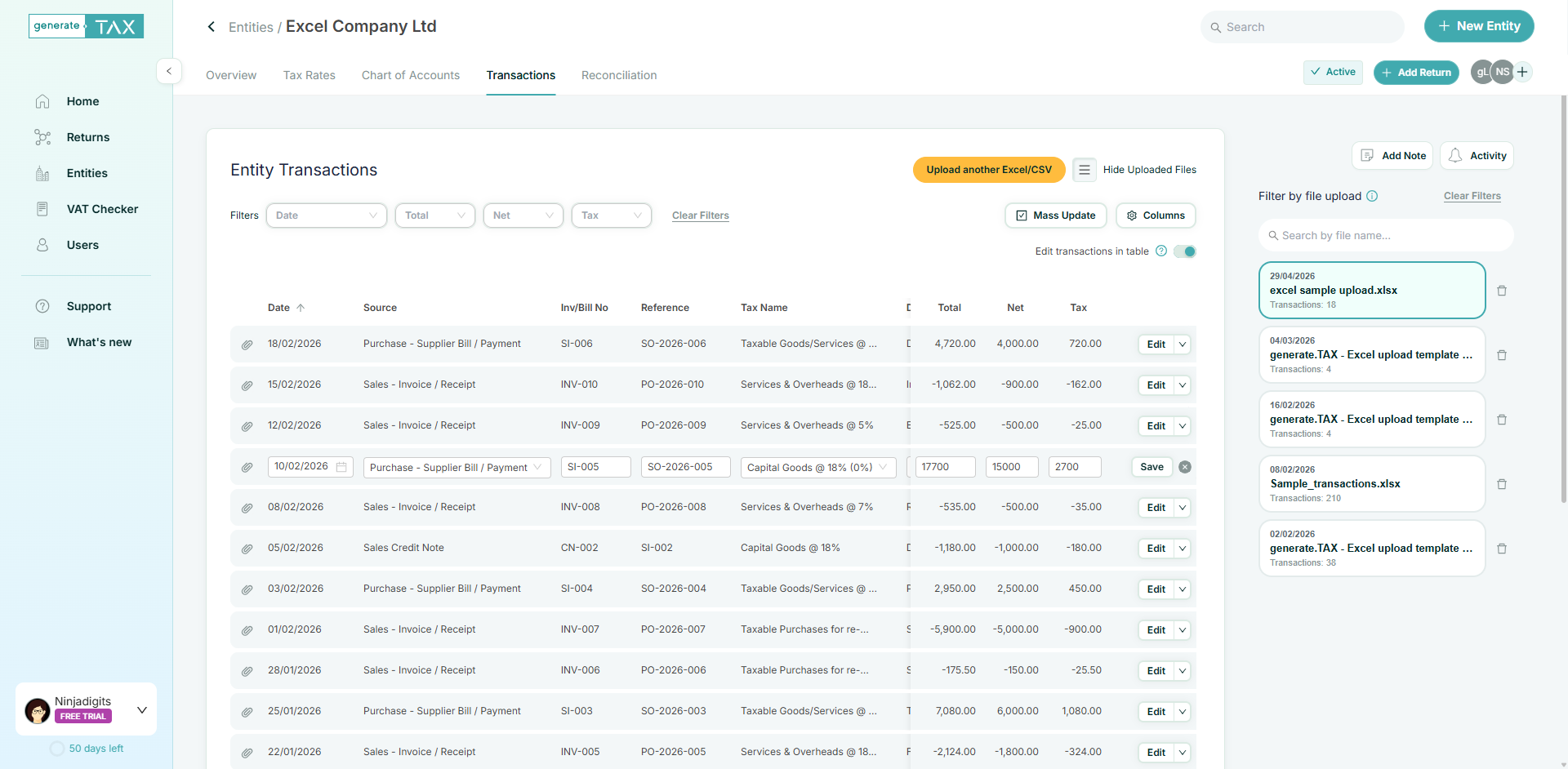
Review and edit transactions
Easily review and correct any transactions
Uploaded records appear in the Transactions tab for a final review and any required editing. Filter by file upload to work through one import at a time and easily clean and wrong data.
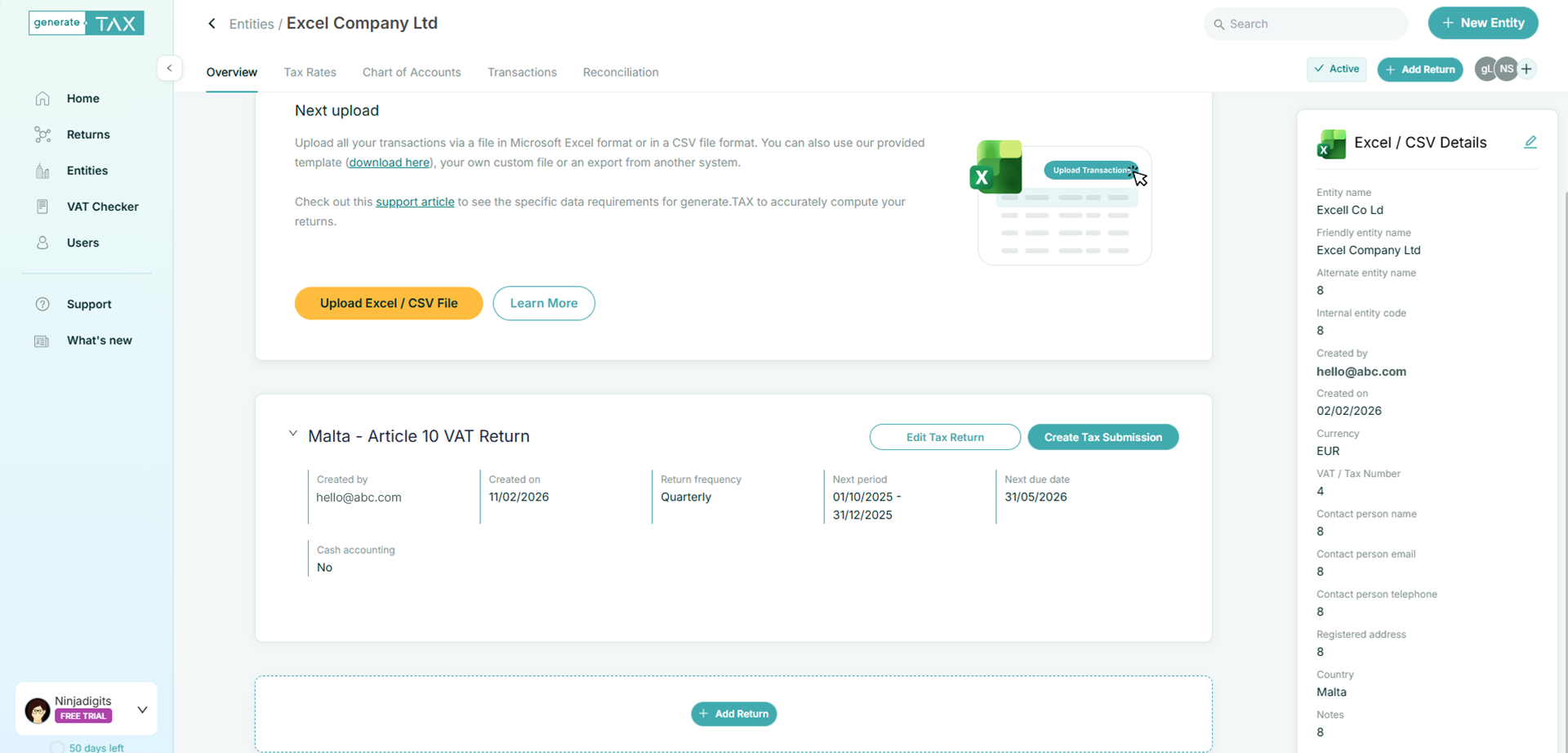
Add a return and map VAT
Use uploaded data to build the return.
Once transactions are uploaded, click Add Return to choose the tax type and period. Then map VAT codes to the corresponding return boxes and proceed through your normal review/submission workflow.
FAQs
What files can I upload?
Excel or CSV exports, including the generate.TAX template.
Can I upload multiple files?
Yes – repeat uploads as needed. You can filter the Transactions view by a specific uploaded file.
What if my upload has errors or duplicates?
generate.TAX runs validation and flags issues during upload so you can correct them before relying on the data for returns.
Where do uploads appear?
Uploaded records are loaded into the Transactions tab for review and editing.
Try it for free
Unlock all generate.TAX features for 30 days to help you with the generation of VAT returns and capture of bills & receipts.
- Connects to your accounting software
- Safe and secure
- Cancel any time